



What's New
Free AI Video Editor: Edit Videos with Prompts
For YouTube creators, editing a video can take 2–3 hours, or even more. Now with our free AI video editor, there's no need to adjust frame by frame, you can add or change objects and finish everything in just a few minutes.
Edit Every Part of Your Videos with AI Video Editor
Why Choose Our Free AI Video Editor?
Our AI video editor makes professional editing simple. You can edit tens of thousands of frames in just a few minutes, fast, free, and natural.
Free to use
Edit videos with AI for free, online, no software installation needed.
No watermark
The downloaded edited video is 100% clean, with no watermarks at all.
High-resolution support
No resolution loss, our video editor AI supports 1080p cinema-quality output.
Fast processing
Even for videos with tens of thousands of frames, change characters or scenes in minutes, no waiting.
Batch image upload
Upload multiple reference images at once to guide the AI for more consistent, natural results with ease.
Latest AI Model for Editing
Supports the latest models like Kling and Hailuo, ensuring edits stay physically accurate and look naturally realistic.
Edit Videos Faster and Easier with Simple Text
No need to repeatedly import footage or adjust details frame by frame. Our AI video editing tool improves both speed and quality. With simple prompts, transitions, color grading, and scene changes are seamless. Quickly iterate and bring your ideas into your videos anytime.
Edit Video with AI Online
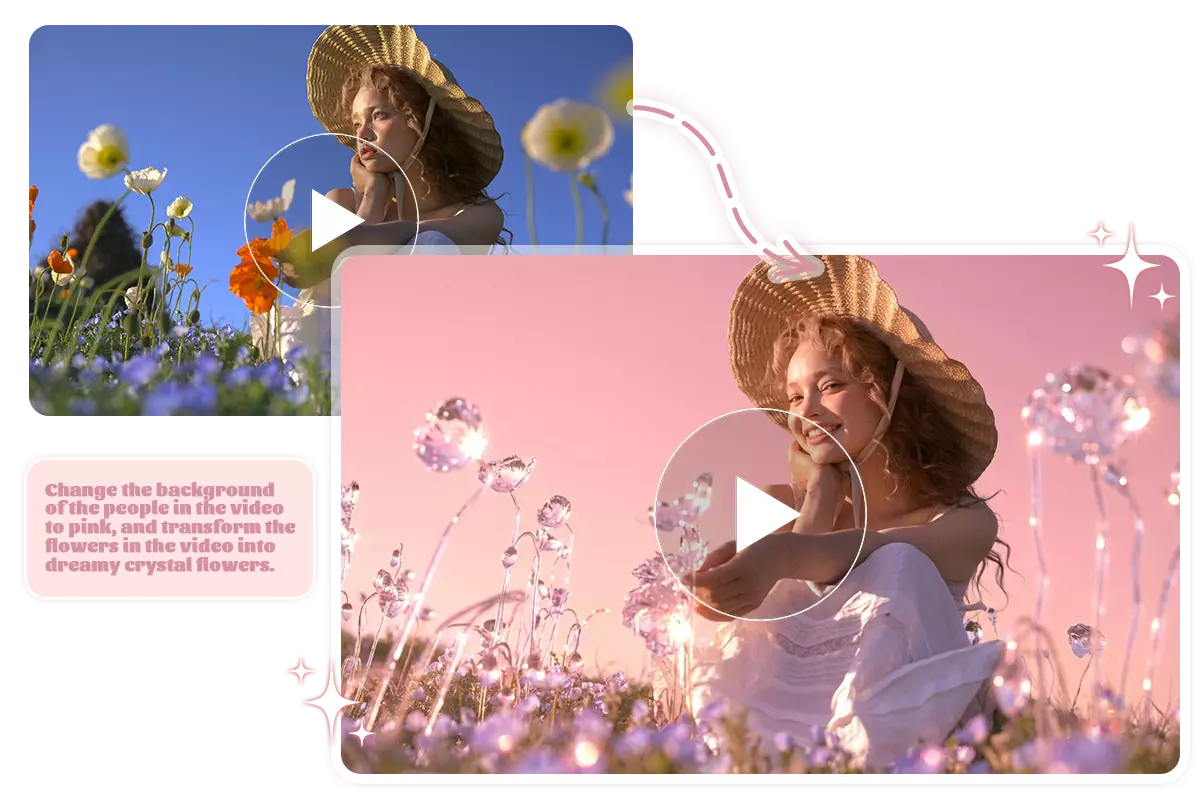
Customize Videos Exactly How You Want with AI
Turn your ideas into tangible results and freely customize your videos with our best AI video editor. Change video backgrounds, video face swap for characters, or transform the overall style, all done effortlessly. You can also add stunning video effects to make your TikTok videos more engaging.
Edit Videos with Simple Prompts
Try AI Video Editor to Repair and Enhance Your Video in High Resolution
Besides adding or replacing objects in your video based on reference images, you can also use our video editor AI to fix issues in the original video and even enhance its quality. Compared to traditional editing workflows, it lets you quickly optimize your videos while keeping every frame in high-quality 1080p.
Try Free AI Video Editor Online
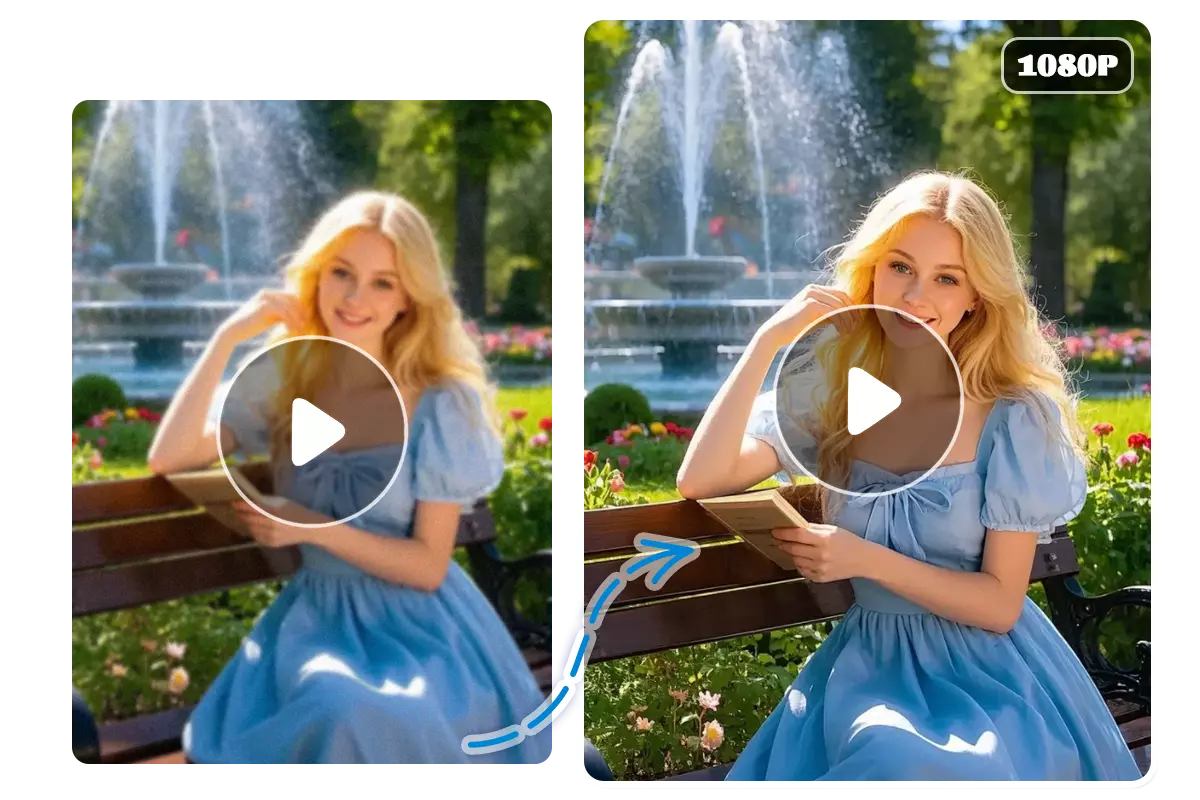
How to Edit Videos with AI Online?
Edit videos with AI in just 3 steps using our free online AI video editor. Upload your video and reference images, enter prompts describing the edits you want, and everything is done automatically in minutes, no professional editing experience needed.
Upload Video & Reference Image
Upload your video along with up to four reference images. These images help guide the AI to add, change, or style elements in your video.
Write Prompts
Write prompts to describe the edits you want based on your uploaded reference images. For example, swap the person in Image 1 with the person in your video.
Download & Share
Set the resolution you need for your video project, then wait for the result to save or download. The whole process will take just a few minutes.
Tips for Editing Your Videos Effectively
If your editing results aren't what you expected, it may be because your prompts weren't precise enough or for other reasons. The tips below could help.
Use clear and specific instructions
You can use "Change [target subject] in video to [image1]", which will produce more stable results than vague prompts.
Use images with a clear subject
Avoid blurry or complex backgrounds. The cleaner the subject, the better the AI recognition and the more natural the replacement.
Avoid overly complex edits
Focus on one change at a time. Too many edits at once can lead to errors, so keep your request simple.
Keep the video stable
Heavy camera shake or fast cuts can affect the quality of AI video editing results.
Keep reference materials consistent
When uploading multiple images, try to maintain similar style, angle, and lighting so the edits blend more naturally.
Avoid extreme lighting or exposure
Overly dark, overexposed, or high-contrast footage can affect AI's ability to detect details, so aim for even lighting.
Honest Reviews of Our Free AI Video Editor
The AI video editor has been a lifesaver for me. I can switch out backgrounds and change the environment in my videos, no green screen needed. It's saved me hours compared to how I used to do it.
--Alex Morgan
I added an explosion effect to my video, and it looks really realistic, just like a professional edit. When I posted it on TikTok, it got thousands more views than usual.
--Sophie Chen
This free AI video editor can even change camera angles. A simple product video turns into a cinematic-level clip after editing, the results are stunning, all thanks to the powerful Kling model.
--Ethan Rivera
FAQs for AI Video Editor
If you have any questions about our AI video editor, please contact us via email immediately.

